
Removing pimples or blemishes from a photo with generative AI is easy. Doing it without turning skin into plastic, losing a mole the client wanted kept, or changing the face is where most tools fail. This is a practical workflow for removing blemishes, acne and redness with AI while the photo stays recognizably the same.
Decide what to remove and what to keep
Remove what is temporary: pimples, blemishes, red spots, breakouts and uneven tone. Keep what is permanent: moles, scars, birthmarks and freckles. An AI model can't always tell these apart, because a pimple and a mole are both small dark marks. So you decide before you run anything.
Step by step
1. Start from the original file. Use a JPEG or PNG exported from your RAW editor, not an already edited or screenshot copy.
2. Mark anything permanent. Paint a protect zone over moles, scars and freckles you want kept.
3. Run the AI retouch once. A single pass that targets blemishes beats stacking several passes.
4. Inspect at 100% zoom, not fit-to-screen. Check the cheeks, forehead and jawline for spots that were missed, and the pores for anything that looks smeared.
5. Heal what's left by hand. Use a spot healing brush for individual blemishes the AI missed.
6. Export at the original resolution, and compare against the original one last time.
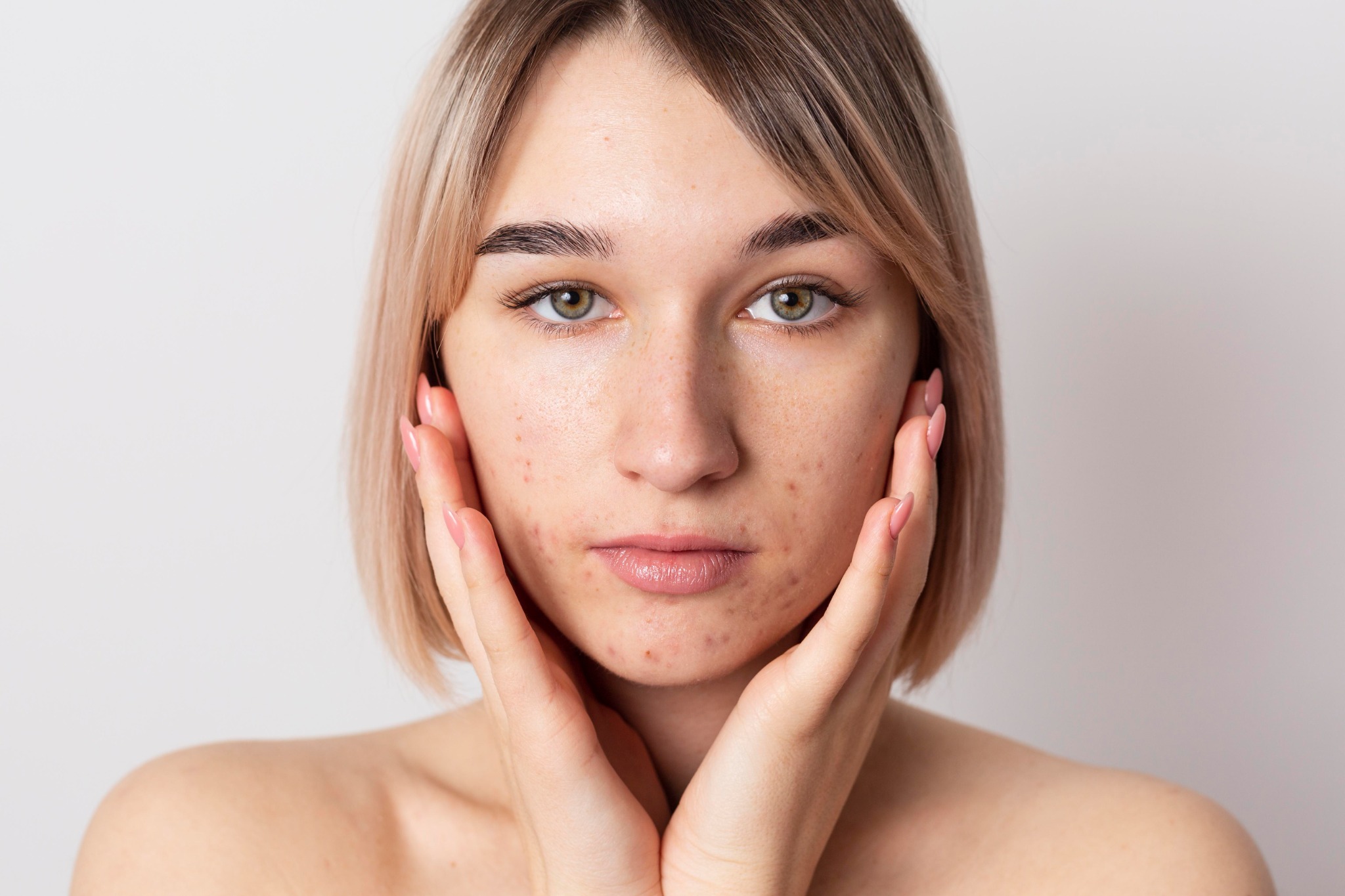
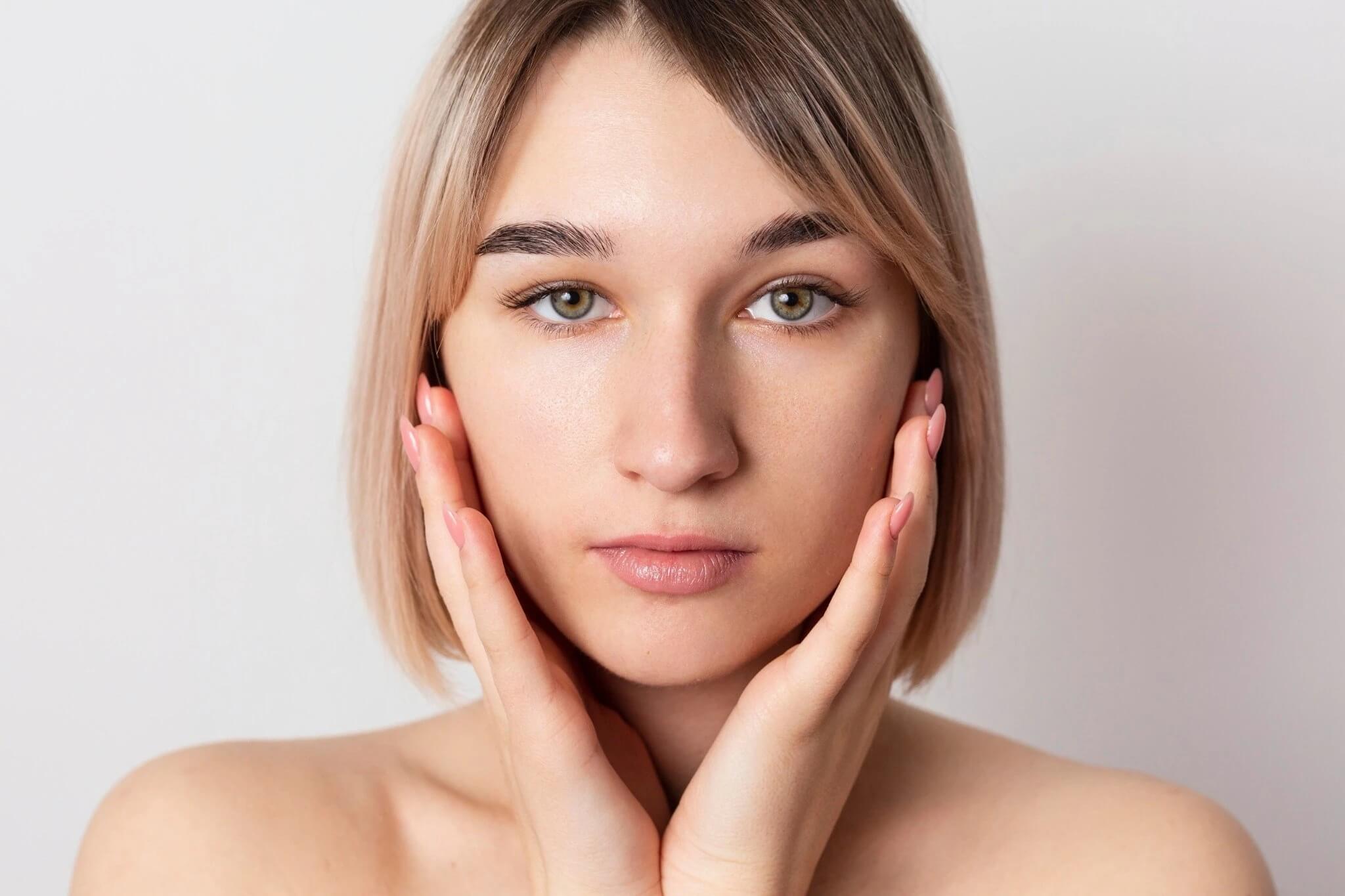
Blemishes removed on the original photo. Compare the face, pores and shadows.
Mistakes that make skin look fake
- Smoothing the whole face. Global smoothing removes pores along with blemishes. Target the blemishes only.
- Removing every dark mark. Moles and freckles are part of the face. Protect them first.
- Judging at fit-to-screen. Flat patches and smeared pores only show at 100%.
- Using a generative editor. Tools that redraw the whole image can change the face, not just the skin. See generative vs non-generative retouching.
FAQ
Want to run this workflow in a few clicks? See the AI blemish remover or the full AI skin retouching tool.
Disclosure: Retouch.to is our product, so weigh this accordingly. Test any tool on your own photos and judge it at 100% zoom.