
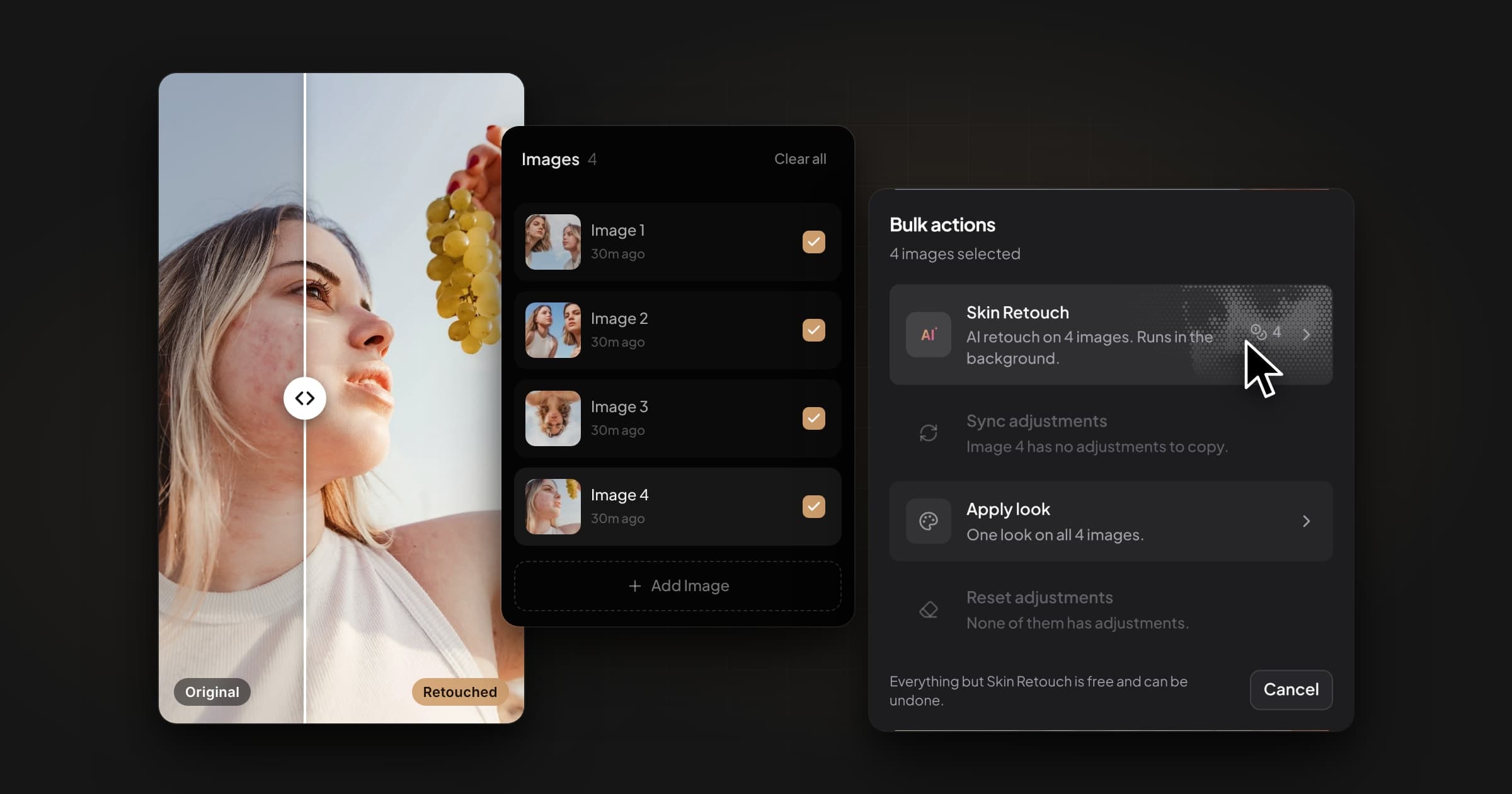
400 frames shot on Saturday. The gallery is due Friday. Every face still needs skin work.
This is the batch workflow we use for portrait and wedding sessions: retouch skin on every selected image in one go, correct color on one photo and sync it to the rest, put one look on the whole set, then export at full resolution.
Why presets alone don't work on skin
Most batch editing means copying settings from one photo and pasting them onto the rest. That works for exposure and white balance, because the light is the same across a set. It fails on skin, because every face and every frame has blemishes in different places. A preset can't know where a spot is. All it can do is soften everything, and that is where the plastic look comes from.
So a portrait batch has two kinds of work:
- Per image: skin retouching and spot healing. Different on every frame, so it should be automatic.
- Shared across the set: color, exposure, crop ratio and the finishing look. Decide them once, then copy them.
Step 1: Upload your selects
Export the selects from Lightroom or Capture One as JPEG or PNG (RAW files aren't supported) and drop them into one project. Every image keeps its own edit history, so the original is always one click away.
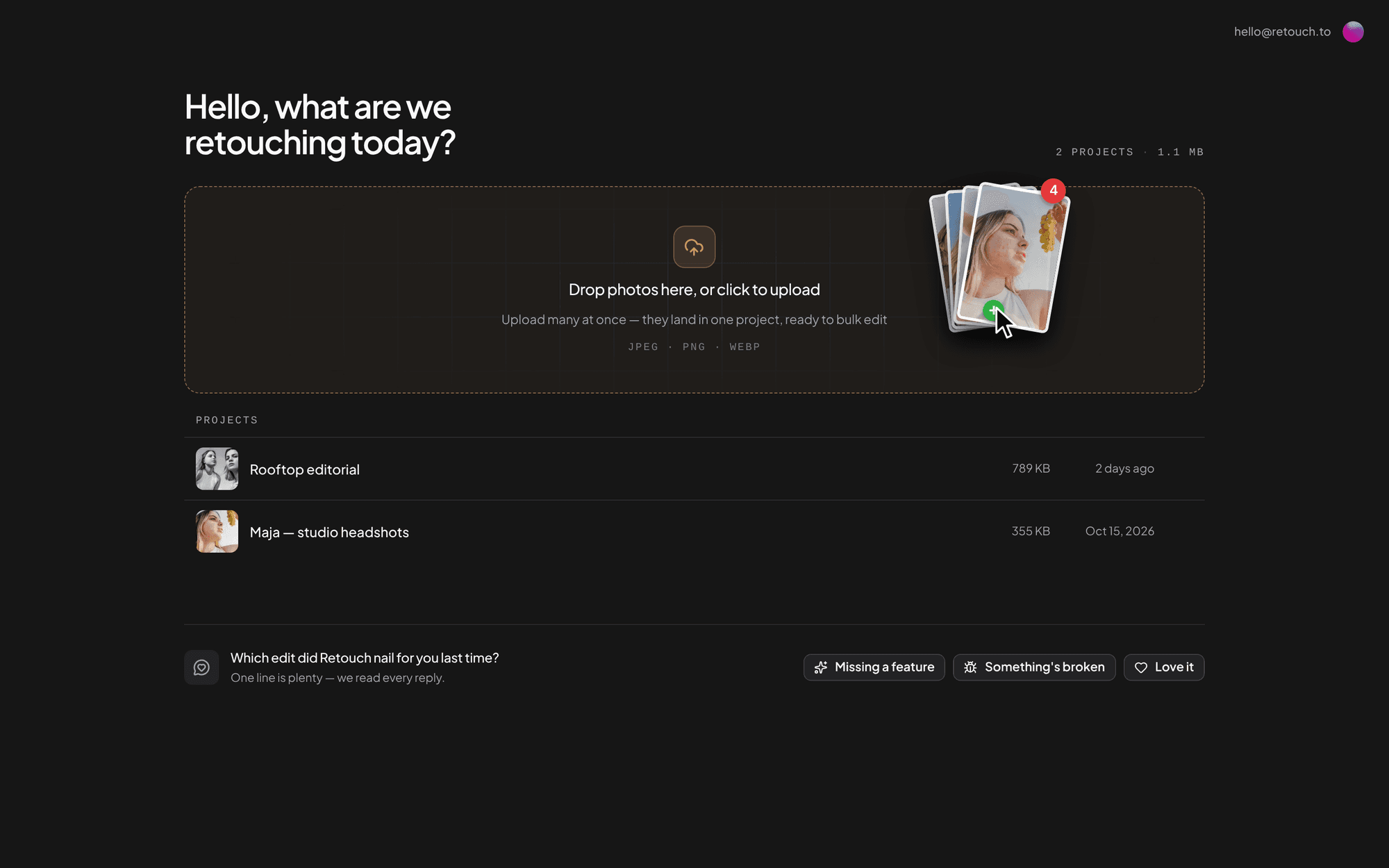
Step 2: Retouch skin on every image at once
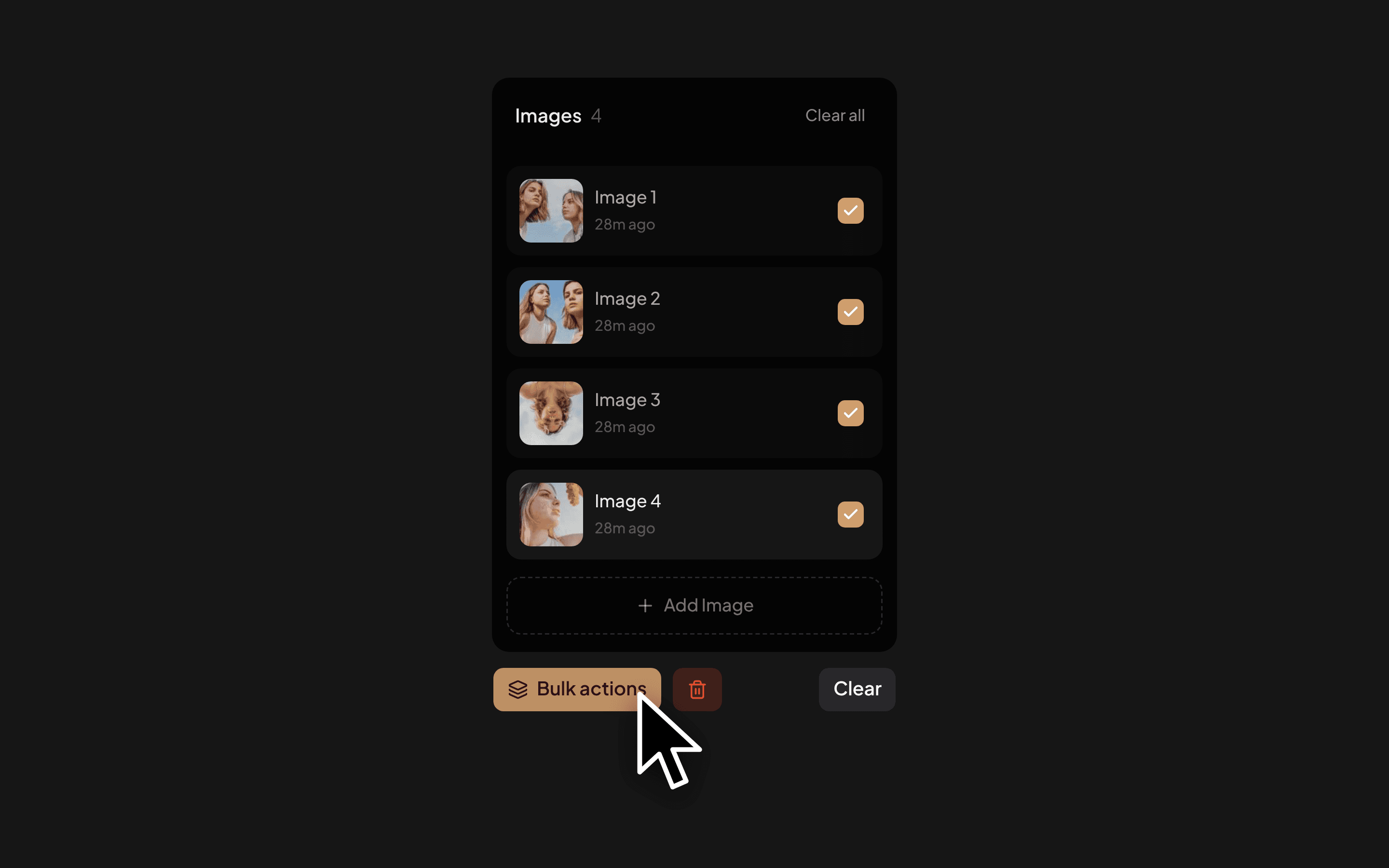
Tick the images in the gallery, open Bulk actions and choose Skin Retouch. The AI finds acne, red spots and blemishes on each image separately and cleans only those. Pores, fine lines, freckles and moles stay where they are, and facial features aren't redrawn. The jobs run in the background, so you can move on to color while they process. It costs one credit per image.
For the exceptions:
- Protect brush: before you retouch a single image, paint over a mole, scar or birthmark that must stay exactly as shot.
- Spot Healing: brush over a stray hair or a mark the automatic pass left, then heal it.
Judge the result at 100% zoom, not fit-to-screen. That is where over-smoothed skin gives itself away. More on how it works: AI skin retouching that keeps moles and freckles.
Step 3: Fix color on one photo, sync it to the rest
Open the image that best represents the light of the set. In Adjust you get Brightness, Contrast, Saturation, Sharpness, Exposure, Highlights, Shadows, Temperature and Tint. Warm up a cold window light, lift the shadows, pull back the highlights. In Crop & Rotate, lock an aspect ratio and straighten a tilted horizon.
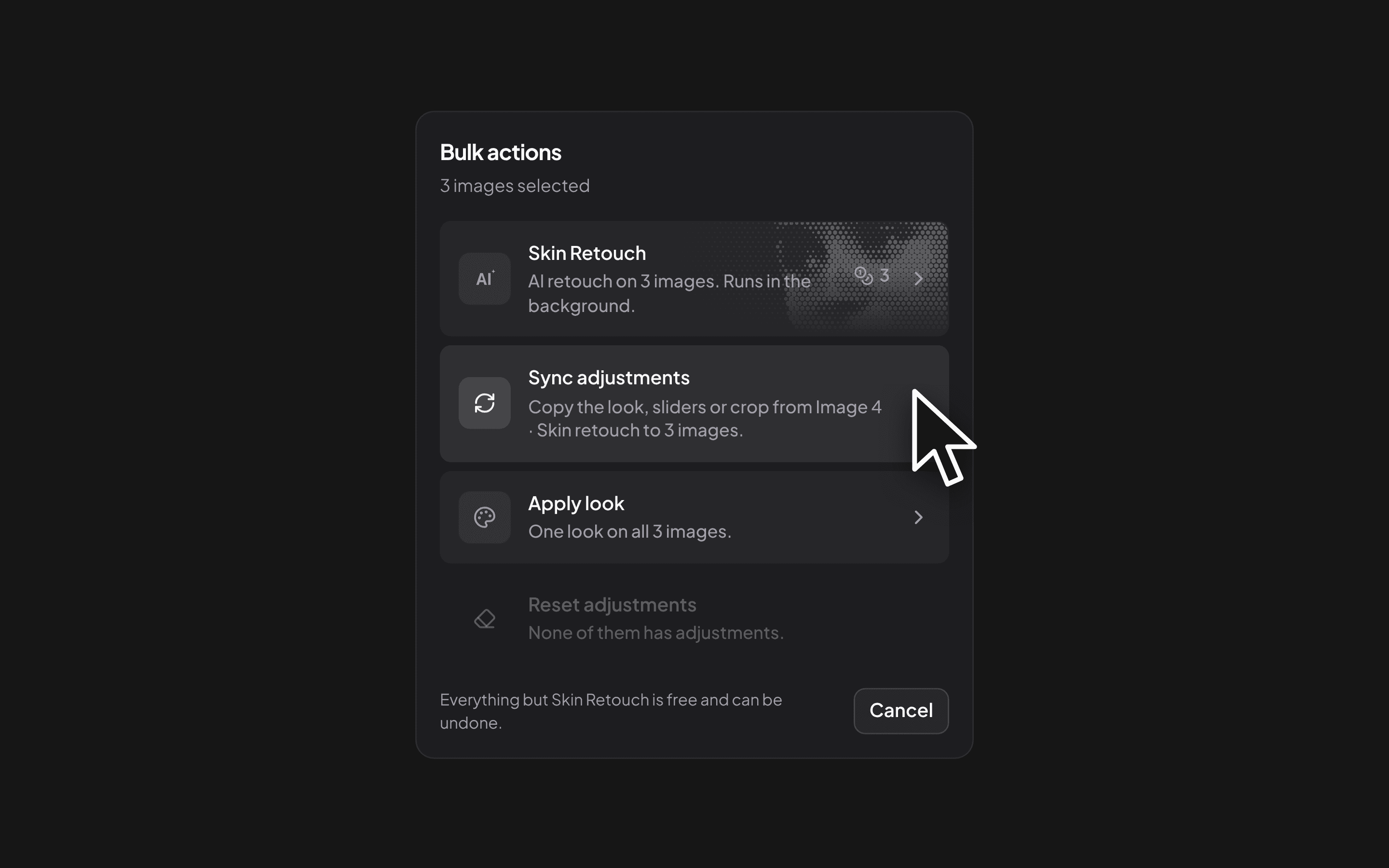
With that photo still open, tick the rest of the set, then choose Bulk actions → Sync adjustments. Pick what to copy: the look, each slider group (Basic Adjust, Fine Tune, Color) or the crop.
- Copy color, skip crop when the frames are composed differently, like a wedding ceremony shot from three angles.
- Copy color and crop for a headshot series that all ship in the same ratio.
Step 4: One look for the whole gallery
A look is a color grade that sits under your corrections. It is applied first, and your sliders adjust on top of it, the same order as a profile in Lightroom. Eight come built in, and each one previews on your own photo before you commit.
Bulk actions → Apply look puts one look on every selected image, with an intensity slider so it can sit at 60% instead of full strength. Changed your mind? Reset adjustments clears them from the whole selection.
Step 5: Export at full resolution
Export downloads the images at their original pixel dimensions as JPG (the default), PNG or WebP. Several images come down as one ZIP. Nothing is downscaled, which is exactly where generative editors fall short. See why ChatGPT changes the face when retouching.
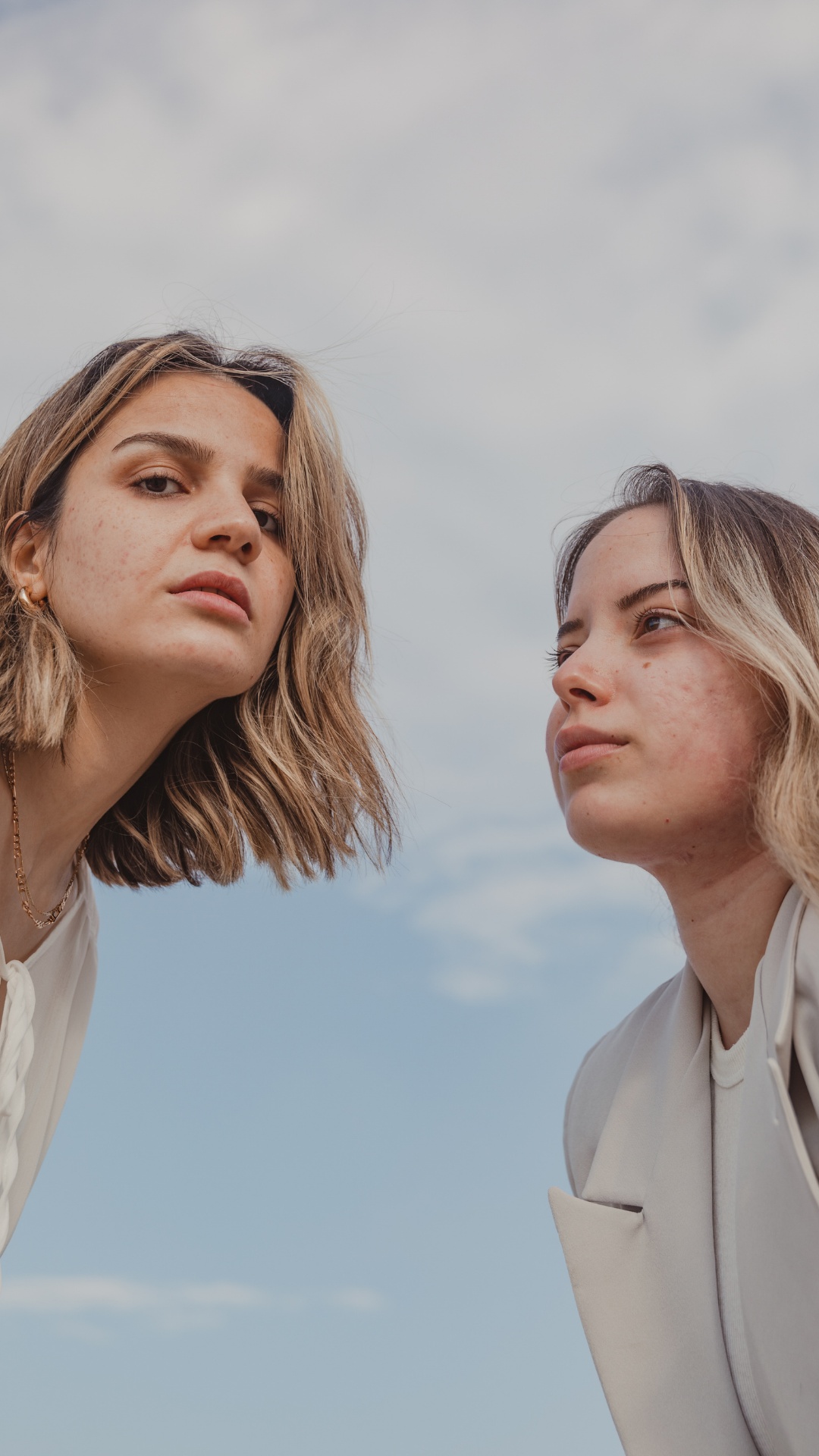
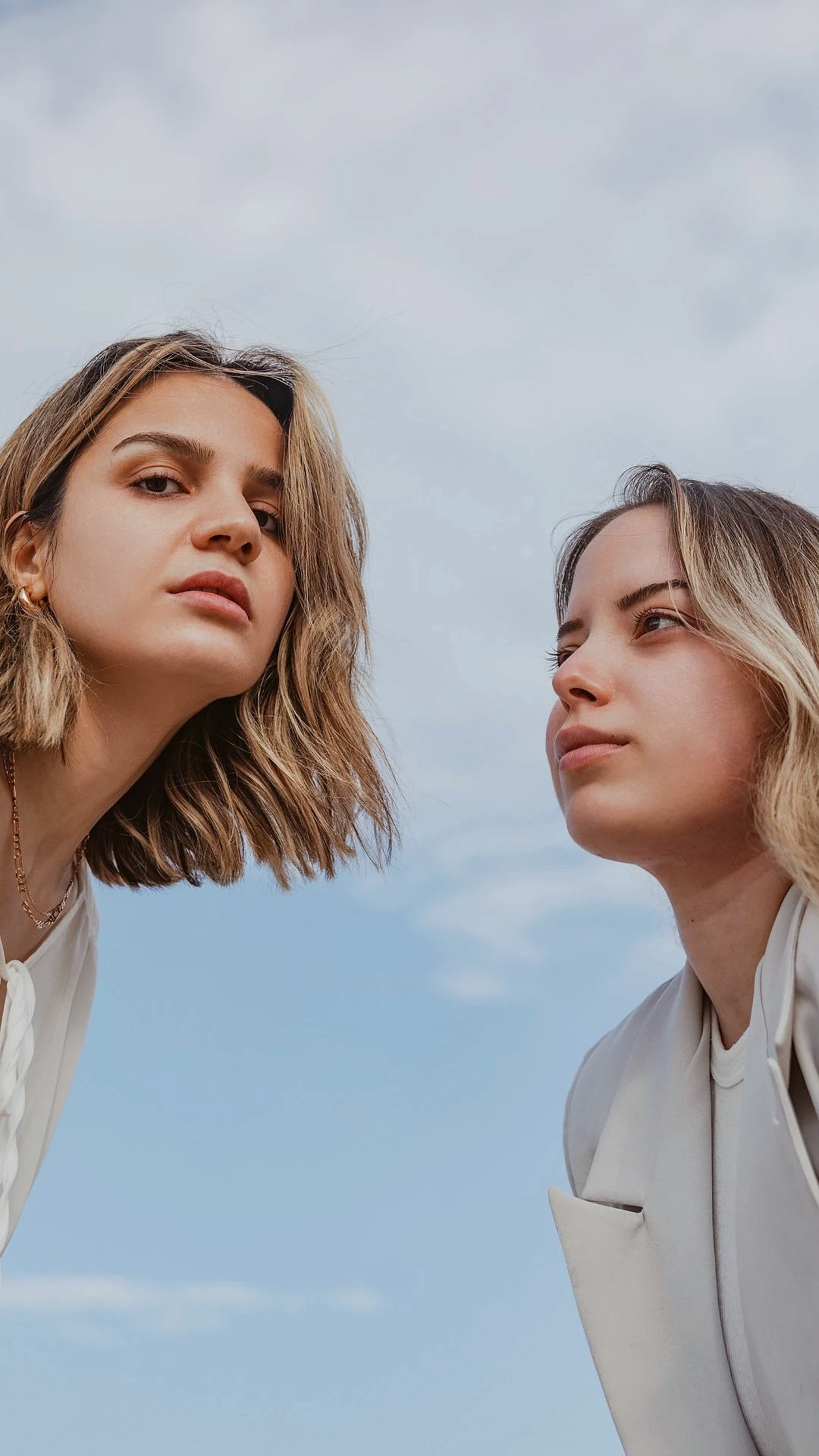
Three frames from one outdoor session. Skin Retouch on all of them, Spot Healing where the automatic pass needed help.
Where the time goes
Hand retouching skin in Photoshop takes roughly 10 to 20 minutes per portrait. On a 40-image gallery that is a full working day spent on skin alone. In this workflow that part runs in the background. What's left for you is the part that needs taste: choosing one image's color and one look, and checking the results at 100%.
FAQ
Disclosure: Retouch.to is our product, so weigh this accordingly. Test any batch workflow on your own session and judge it at 100% zoom.