
Two kinds of AI retouching look the same in a demo and behave very differently on a client photo. One generates a new image that resembles yours. The other edits your original and hands it back.
How generative retouching works
Prompt-based and generative image editors produce a new image that matches your description. Your original pixels are input, not output. Anything the model isn't told to keep is open to reinterpretation, and a face is the easiest thing for it to reinterpret.
A model that redraws the image cannot separate a blemish from a feature. A pimple and a mole are both small dark marks. The model has no concept of temporary versus permanent. It has a learned idea of what a plausible face looks like, and it pulls your subject toward that idea.
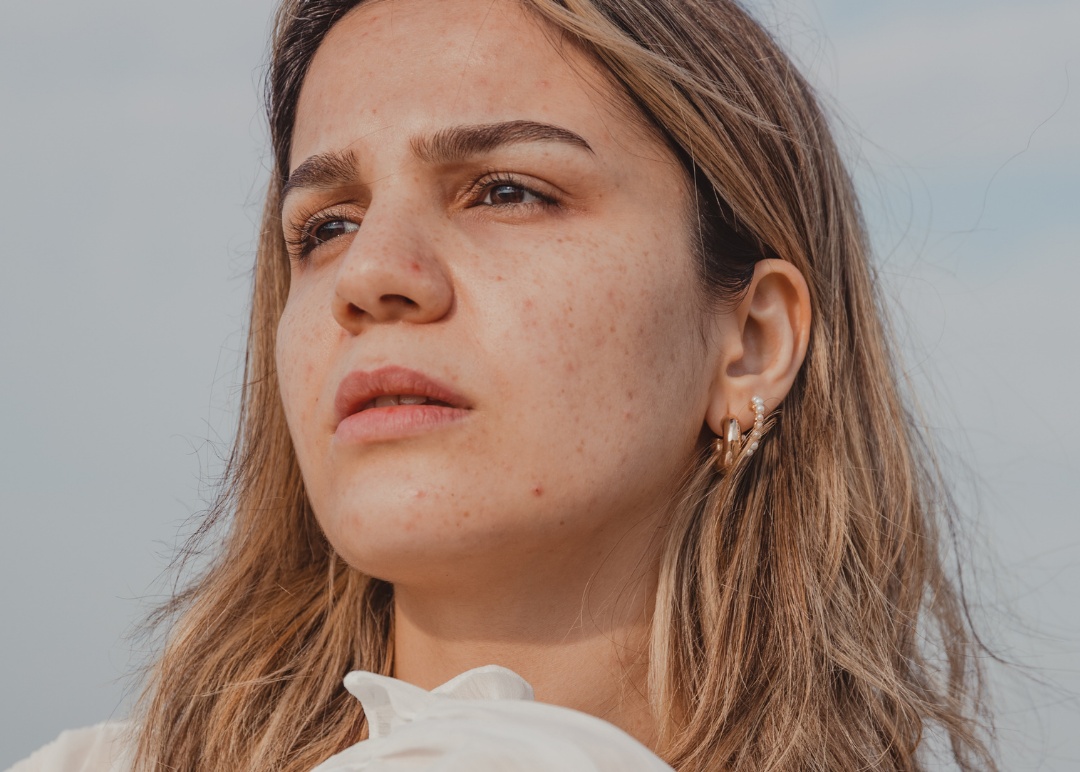
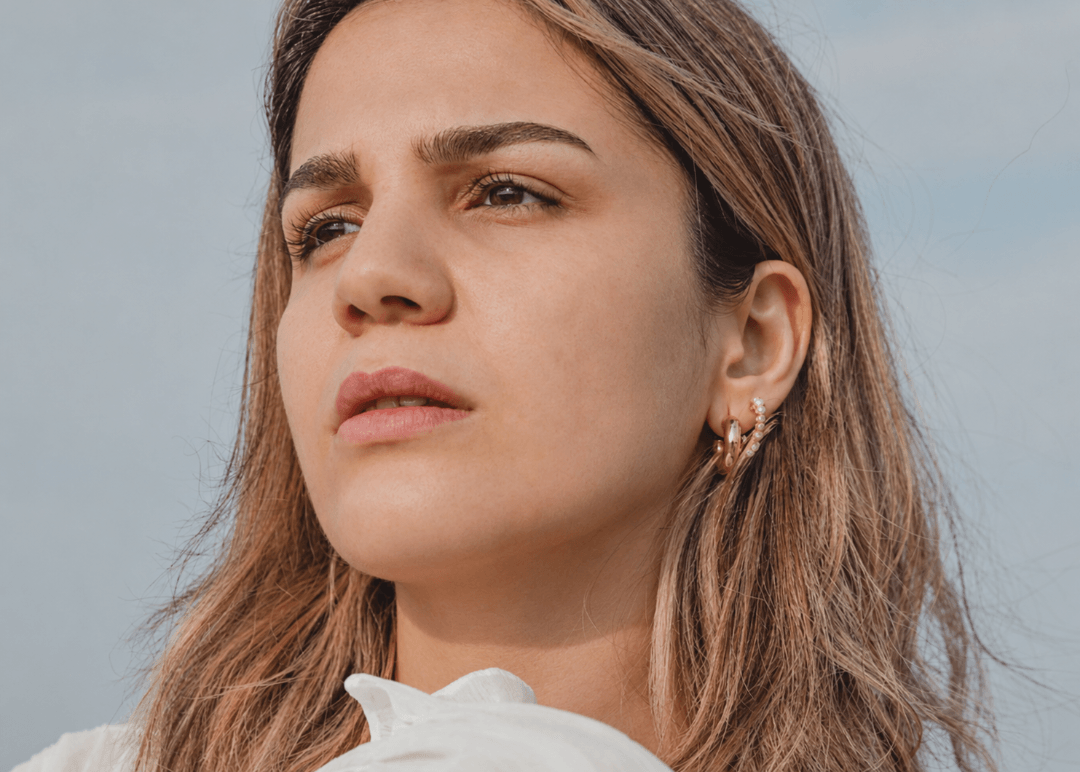
The same photo, before and after a prompt-based retouch. Check the face, not the skin.
What can drift
The changes are often small enough that you only notice when you put the original next to the result. Clients notice immediately, because they know their own face.
- Face geometry: jawline, nose width, eye spacing and eyelid shape can shift.
- Skin marks: moles, scars, freckle patterns and birthmarks can be smoothed away or moved.
- Texture: real pores and fine lines can be replaced with a generic, synthetic skin surface.
- Age and complexion: apparent age, skin tone and undertone can drift toward what the model considers typical.
- Expression: the smile, the gaze and small asymmetries can change.
- Resolution: the output is not guaranteed to match the pixel size you uploaded.
How non-generative retouching works
A non-generative tool is pointed at imperfections in the skin and returns your original image with those imperfections cleaned. Anything you tell it to protect stays where it was. Retouch.to works this way: it finds blemishes, red spots and uneven tone on your original photo and exports at the resolution you uploaded.
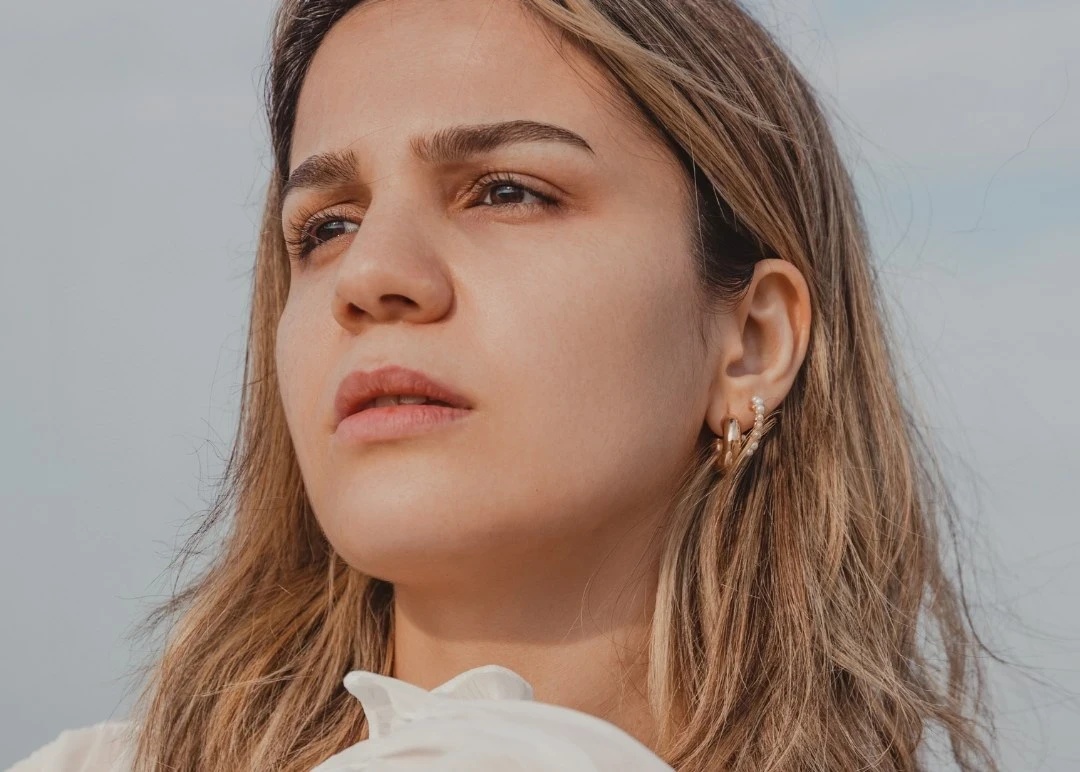
The same photo, retouched on the original.
How to tell which kind you're using
1. Compare at 100% zoom. Look at the eyes, hairline, jaw edge and any moles.
2. Check the output size against your upload.
3. Run the same photo twice. A generative tool can return a different face each time.
4. Look for a way to protect the areas you want kept.
Where non-generative isn't perfect
Prominent freckles can be softened, and an unmarked mole can be read as a blemish. That is why a protect brush exists. Mark anything permanent before you run the retouch, then check the result.
FAQ
Related: why ChatGPT changes your face when retouching.
Disclosure: Retouch.to was built around this approach, so weigh this accordingly. Test any tool on your own photos and judge it at 100% zoom.